Step 2 - Setting up windows ODBC driver
In order to use Access you need to set up an ODBC connection. Click on Start / Settings /Control Panel / Administrative Tools and click on the "Data Sources" menu item.(Figure 2) .
The following window opens: ODBC Data Source Administrator (Figure 3.) In this window select the System DSN (1) tab. Then click on Add (2).

On the Create New Data Source form, select the Microsoft Access Driver (1) and click to Finish (2). (Figure 4.)

This brings up the ODBC Microsoft Access Setup (Figure 5.) form. Set the Data Source Name to MSAccessSystem (1) write some Desciription (2) Click on Select (3). Open the preveously downloaded file, or the file you have created yourself: ozeki_ms6_released.mdb.

Step 3 - Configure OZEKI MESSAGE SERVER to use database connection
This can be done by opening the Plugins menu. Select the Installed Plugins menuitem (Figure 6.)
This can be done by opening the Plugins menu. Select the Installed Plugins menuitem (Figure 6.)

When the form is open, select the database plugin to install. (Figure 7 .)

Next click on Configure! (Figure 8.)

If you want to use the database for sending and receiving messages place checkmarks into the Use database for receiving SMS messages and the Use database for sending SMS messages checkbox (2,3). Important: place a checkmark into the Auto connect on startup checkbox (4) as well, to make sure, when you re start the program the database connection will start up automatically. You can define a database connection by clicking on Build database connection (1) (Figure 9.)

Select the Use Connection String radio button , and click on build (Figure 10.).
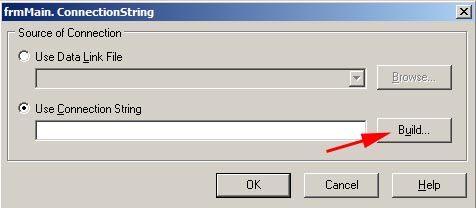
Figure 10 - Connection string
In the Data Link Properties window select the Provider tab and select the OLE DB Provider for ODBC Drivers list item from the OLE DB Provider list box(1). Click on next (2).(Figure 11.)
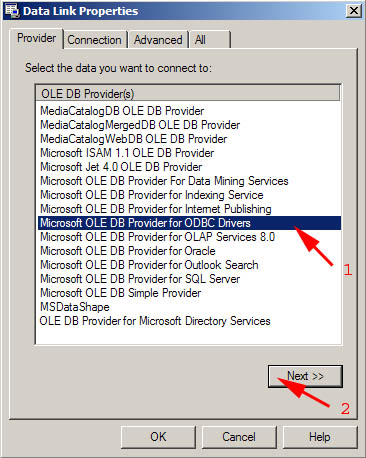
Figure 11 - Data link properties
The Connection tab will appear, Click the drop down menu called "Use data source name" and select MSAccessSystem list item (1,2). Remember in the second step we create the Data Source Name: MSAccessSystem (Figure 5). Make sure the User name is Admin (3). Click to Blank password (4) You should test the connection by clicking on Test Connection (5) (Figure 12.)
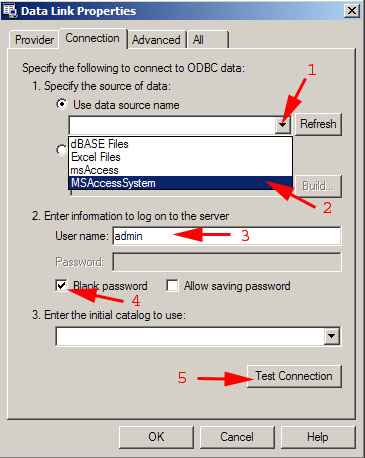
Figure 12 - Choosing of the data source
If the connection is ok you will see: (Figure 13.)
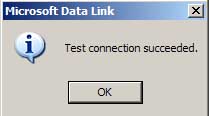
Figure 13- Connection is successfully
When you setup is correct the next window will appear: At the bottom of the window you can see the log if you click on the statusbar. When the Database connection is established the Database plugin 1 : select id,receiver,msg,operator text will appear in the log.
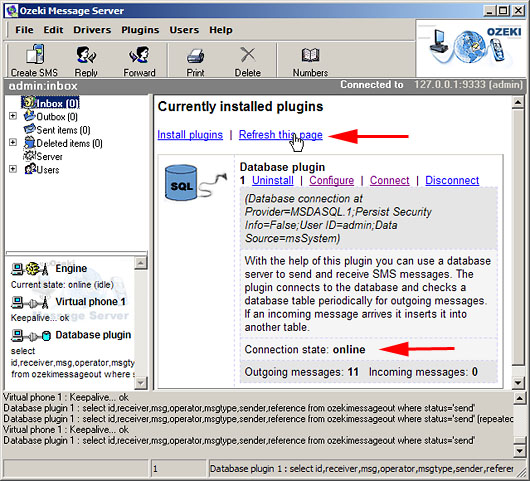
Figure 14 - Refreshing of the currently installed plugins
Sending sms via MS Access
When the server starts, go to Access and send a message, by inserting a new record into the ozekimessageout table. You must specify the receiver, enter the message in the msg field and set the status to send! (The incoming SMS messages will appear in the ozekimessagein table.)
When the server starts, go to Access and send a message, by inserting a new record into the ozekimessageout table. You must specify the receiver, enter the message in the msg field and set the status to send! (The incoming SMS messages will appear in the ozekimessagein table.)
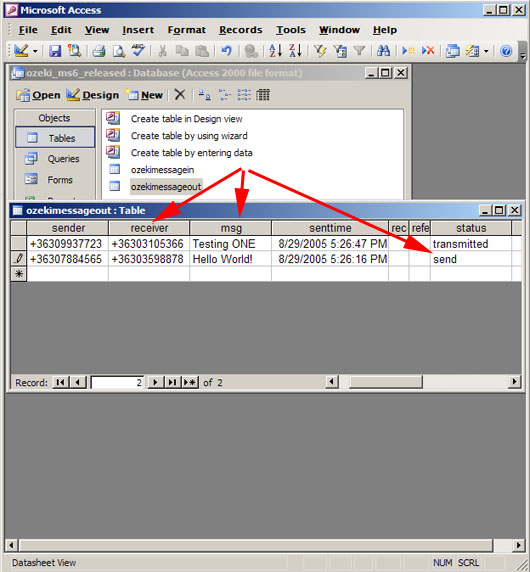
Figure 15 - Content of the Ozekimessageout table
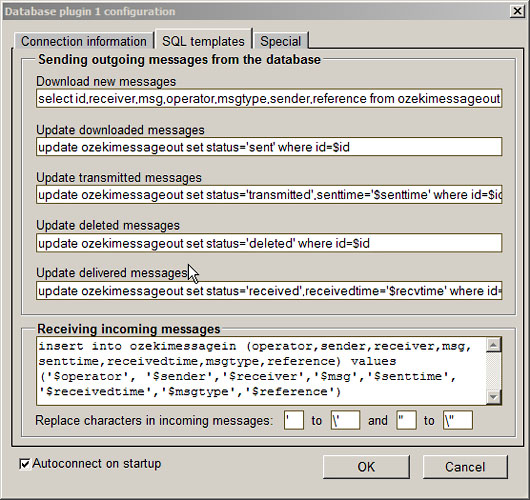
OZEKI SMS allow you to control the SQL queries used to access the data in your Access database . In these versions, you must modify these queries to make things work. Here is what you should do:
// Remove the apostrophe around the word $id. ($id should be changed to $id)
Here is what you should get after modifying the SQL statements:
// Remove the apostrophe around the word $id. ($id should be changed to $id)
Here is what you should get after modifying the SQL statements: