Saturday, January 30, 2010

GSM, GPRS and UMTS

The Mobile Gateway can be used with the standard GSM and GPRS networks, as well as with highspeed UMTS. The newest version of WTLS guarantees a highly secure environment.
 
Banks use Mobile Gateways to offer their customers a variety of mobile banking services and mobile entertainment services.

Airlines can use Mobile Gateways to offer their customers in-flight internet and email on their own mobile phone.
 
Car manufacturers will integrate a Mobile Gateway connected to the navigation system to create intelligent cars, able to provide drivers with constantly updated information on weather, traffic or news. Not only can businesses update the information on all cars and vehicles with
one-click, but they can also update the actual car-software from afar! This means that running car-software can get bugfixes and updates. Moreover can the car manufacturer actually upload new programs onto any car within an instant.
 
Mobile Entertainment Reseller can realize their business models to sell mobile games, ringtones and logos.

Mobile Gateway


Everytime when a mobile phone or PDA is accessing or uploading data such as text files, emails, MMS, ringtones, MP3s or movies a Mobile Gateway is being used. Companies, which have a need for the fastest communication available also use Mobile Gateways to let employees access emails or inform them, while they are travelling or outside the office.

Mobile phones and PDAs usually access gateways of telecom providers. However, if a company needs a secure, fast and inexpensive connection, the company has to install a private Mobile Gateway. The Mobile Gateway will be integrated directly into the existing telecommunication and internet-infrastructure. Afterwards, all employees or predefined member groups can directly access their companys intranet and down- and upload files of any kind.
 

- The highest possible security: No data sent over public networks, all data automatically 
encrypted

-  Very fast transmission speeds: optimized software makes the fastest possible  
connections
 

-   Less expensive than the competition: Special company rates create a very inexpensive 
networking experience
 

-  Personalized content with optimized design for mobile phones and PDAs: only using a private Mobile Gateway empowers companies to identify users/usergroups and  deliver them with content that fits their profile, demands and mobile phone type. Last, but not least, the business is able to distribute different access rights to every individual.

Sunday, January 3, 2010

SMS Marketing The Best Means of Communication With Your Customers


Marketing as we all know is one of the most essential things for the promotion of any product or service. It is essential for you to make your customers aware of the product or the services that you are selling. And for this reason there is the need to communicate with the people. These days no other communication method other than the personal contact can offer better results. If you contact with your customers or rather to say if your sales persons contact your customers personally, nothing can be better than that for the promotion of your product. And in this field several methods are also applied. These days the mobile marketing technology is the most popular means of communication with your customers as these days you can find a mobile in almost every pocket. Even there are other methods like telephonic conversation or the email marketing these are also quite popular means of communication but not as much effective like the SMS marketing or the Bluetooth marketing. The SMS and Bluetooth marketing are the most recent addition in the list of methods of marketing strategy. If we take the example of SMS marketing technology for discussion it can be said that the SMS marketing is the most useful and the cheapest means of communication with your customers. This is a procedure where specific messages from a particular company are sent to certain mobile numbers. This marketing strategy is considered as the most effective because with the help of the SMS marketing technique you can send your message directly to the customer’s hand set and as thus you can reach your customer instantly and there is no need for your customer to check his email to receive his message as in case of the email marketing. On the other hand this is a better method than the telephonic conversation. As for the telephonic conversation you can never know in what state your customer is when you are going to call him. Therefore if your customer is too busy the time you call him you may disturb him by doing that. But if you send a SMS instead then this problem of disturbing your customer can easily be avoided as the SMS gets stored in the customer’s hand set and he can read the message anytime he thinks appropriate. There is also another advantage of the SMS marketing. The SMS is considered to be a spam free means of communication therefore it is more certain that your message would be duly delivered. With the bulk SMS facility you can send the same message to several customers all that the same time. And as the SMS service uses the store and forward method therefore the message you send does not goes straight to the customer’s handset, instead it gets stored in the SMSC server and then it is delivered. In this way if the customer is not within the range or his mobile is not switched on then the message can wait in the SMSC server and is delivered only when the customer comes within the range or turns on his mobile. Thus the SMS marketing better than any other means of communication.

E-mail SMS Gateway

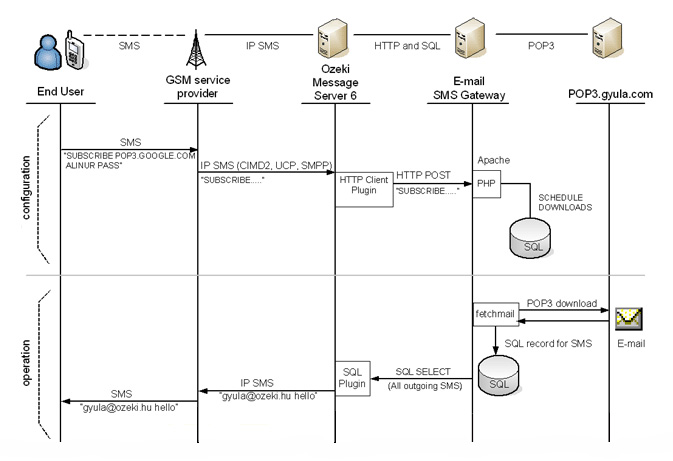
The purpose of this case study is to illustrate how you can set up a high capacity E-mail SMS gateway solution supporting very large number of users. The goal of this solution is to create a system, where the end users can request notification about incoming e-mail messages sent to his POP3 mailbox. The end user can subscribe to the service by sending his POP3 account information in an SMS message to dedicated phone number. After configuration the system checks his POP3 account for new messages periodically. If there are new e-mail messages in the users inbox, a notification SMS can be sent to the user containging the sender address and the subject of the e-mail.

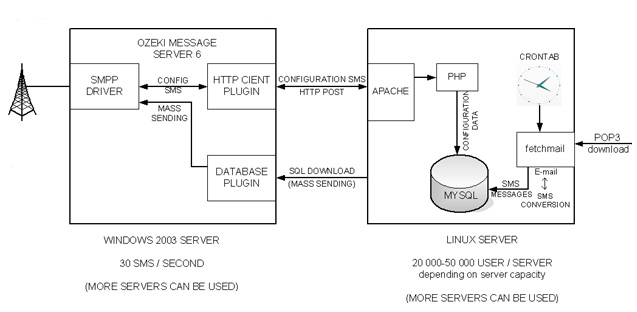
To create this service in a professional manner two dedicated servers should be set up. One of the severs (a Windows 2003) should have Ozeki Message Server 6 installed the other (a Linux, BSD or Solaris system) should have an E-mail application. Ozeki Message Server 6 will be responsible for transmitting the SMS messages and the E-mail server will be responsible for translating the e-mails into SMS.

Figrue 1 illustrates the communication procedures between the system components, keeping in mind that the system should support SMS based configuration. The diagram shows, that two seperate channels should be set up for SMS based configuration and for sending out the notifications. The SMS based configuration is driven by the user and for this task a good solution is provided by the HTTP Client Plugin. When an incoming cofiguration message is received by Ozeki Message Server 6, an HTTP request could be made to the E-mail server to update the configuration. This request can return a response SMS message telling the user that the configuration is performed.

                                                                             Figure 1
Once the configuration has been completed a second channel is taking action. This is called the operation mode. In this setup a software called fetchmail can download the e-mail messages from the configured POP3 account. This download can be scheduled by crontab or some other task scheduler application. The fetchmail program is responsible for processing the downloaded e-mail messages and converting them to SMS. The result of the conversion is a set of database records inserted into a database server e.g. MySQL (Figure 2).

                                                                         Figure 2
Ozeki Message Server 6 has a high perfomance database plugin, that can collect the outgoing messages from the database and send them out.

The capacity of the system can extended by adding more E-mail servers.

Financial services support

For financial institutes - such as banks, brokerage firms and investment funds - security and trust is very important. For their customers additional services that increase the confidence can be offered using Ozeki SMS technology. In these situations IP SMS connectivity is widely used, because of high performance requirements.

An example of a financial service, could be SMS notification about all transactions on a client account, or the possibility of raising the limit of maximum spending on a credit card by sending an SMS from a specified mobile phone.

Securities and investment companies can make their clients happy by sending stock quotes and investment tips to them and they can provide two way information retrieval services as well.

SMS - E-mail forwarding

On my servers I have HP insight manager installed. They send me email notifications of problems with the server. I want to use your software to forward the error messages to 3 separate mobiles. can this be achieved with your software? How can I do this if it is possible?
The solution is: SMS - E-mail forwarding
Please follow these steps to set up such a service:

Step 1.) Create a POP3 e-mail account on your e-mail server.
e.g.: smsalert@mcgrath.com.au, user: smsalert, pass: wpsd

Step 2.) Download the latest version of Ozeki Message Server 6 from the following URL:
http://www.ozeki.hu/index.php?ow_page_number=360

Step 3.) Install the software and in the Ozeki Server Manager install the POP3 Notifier plugin from the Plugins / Install plugins menu. (please note that this plugin is only available in version v6.2.0.4 or later)

Step 4.) In the POP3 notifier plugin configuration form specify your POP3 e-mail account (smsalert@mcgrath.com.au, user: smsalert, pass: wpsd), and the 3 destination phone numbers.

Step 5.) Install and configure a GSM modem driver.

After this setup Ozeki Message Server 6 will download the incoming e-mail messages periodically from your POP3 e-mail server and send their subject to the configured phone numbers.

Marketing SMS campaignes I.

SITUATION AND DEMAND
Principally, in case of commercial firms, it often happens, that they would like to send SMS messages for those group getting up in accordance with target viewpoint. In general, the information is the goal, they don't wait for replying to sent messages. The typical size of target audience consists of 1000-10000 person, which means as many telephone numbers. For sending of large number of SMS, it is a frequent demand to look for those messages, which has been already sent to the recipient group. It is important to draw an exact picture about messages, which members of the target audience received it, or not. This campaignes are called Marketing SMS campaign.

For providing the task, we suggest Excel extension of the Ozeki Message Server 6, because by this help of the progam, such a user, who knows the Microsoft Excel program, can send the messages to an addresslists easily.

PROPOSAL TO SOLVATION

1.) Install the Ozeki Message Server program
2.) Make up the client list in Excel program (the first column of the Excel table contains telephone numbers, the second column contains those messages waiting for sending.)
3.) Send the messages by help of button, which can be found in ozeki.xls file.

DETAILED USER GUIDE
Install the Ozeki Message Server, then we set it on the base of the following eight steps:
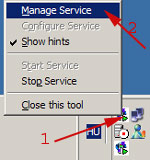
1. Set up the Ozeki Server Manager (Picture 1 )


Picture 1 - Setting up the Ozeki Server Manager

2.
 Log in as an administrator (2), and enter the password, then click on Ok button (3). (Picture 2 )
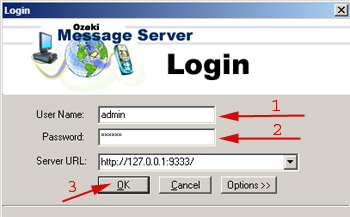


Picture 2 - Logging into the Server
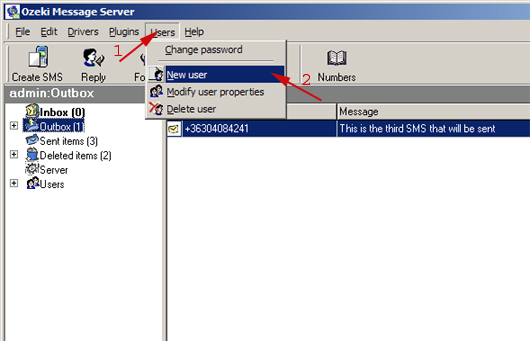
3. If we logged in the server, we would create a new user. Select a New user from the User menu. (Picture 3)

Picture 3 - Generation of a new user

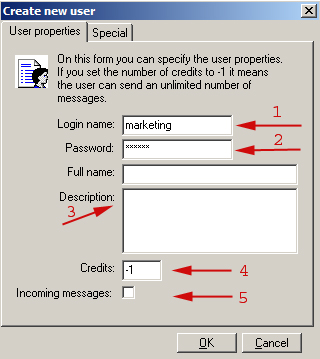
4. Type in a user name (marketing) (1), a password (2), can be added to it a description (3). The user can send messages in an unlimited number (4), but he/she is not able to receive SMS (5). If all we need is ready, click on Ok button (6).
Note: the user name and password will be used in the point 5.   (Picture 4 )


Picture 4 - Specification of the new user's properties

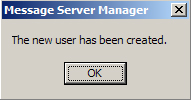
If the creation of a new user was successfully, we would see a following window. (Picture 5 )

Picture 5 - Successful creation

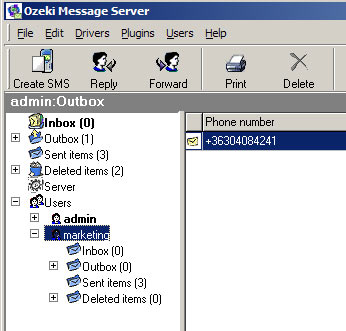
Take a look at program left side. Here we can see, that the user called 'marketing' was created. (Picture 6 )

Picture 6 - Creation of the 'marketing user'

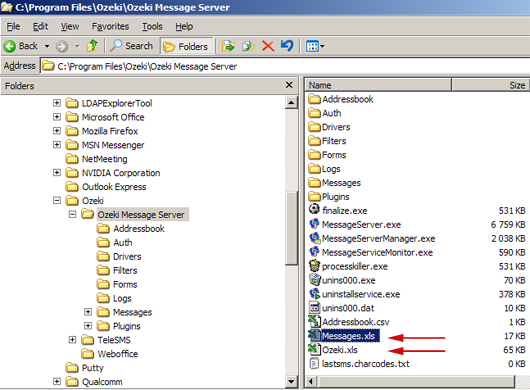
5. Open message.xls and ozeki.xls files from c:\Program Files\Ozeki\Message server folders by help of Control panel, or from that directory, in which Ozeki Message Server was created. (Picture 7)

Picture 7 - Opening of the Messages.xls

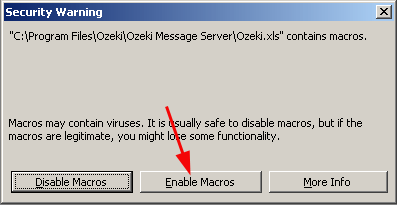
Important: Permit a macros at opening of Excel program! (Picture 8 )


Picture 8 - Permission of the macros

6. If we opened mesages.xls, we type a telephone number of recipient (1), then and messages belonging to the phone number (2). (Picture 9 )

Picture 9 - Typing phone number and messages belonging to it

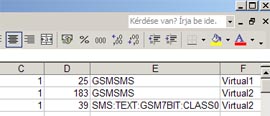
 Delete the contents of cell D, cell E, cell F! (Picture 10 )

Picture 10 - Deletion of cells D, E, F

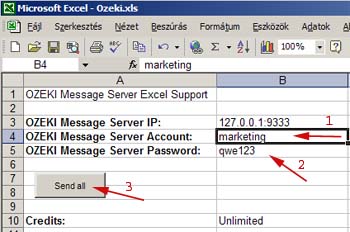
7. In Ozeki xls file, we rewrite the Message server account to user name have already generated by us (marketing) (1), then we type in password (2) and we send the messages by clicking Send all button (3).
Note: After clicking Send all button, the Excel program asks us, where the messages could be found? If we opened messages.xls, the program would offer it.   (Picture 11 )

Picture 11 - Sending messages by Send all button

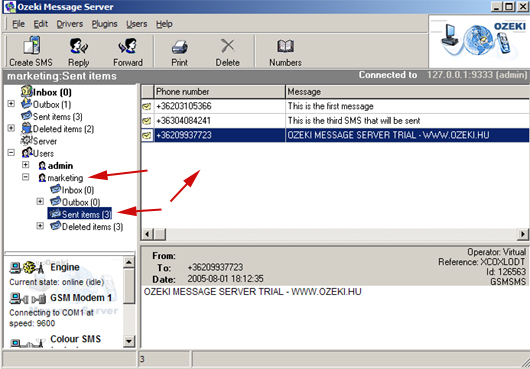
8. Step back to the Ozeki Message Server to be able to follow sending of the SMS.
Note: We can log in as a marketing name in the Ozeki Message Server as well. In this case, the admin user cannot be visible.  (Picture 12 )


Picture 12 - Sending SMS

Using SMS Technology in Business ( Contd...)

 Workflow Automation

The goal of workflow automation systems to create an infrastructure, where the "computer tells the people what to do and not vice versa". In other words the computer system of the company should manage the workflow and should make sure every employee gets the relevant information when needed. Most workflow automations systems use databases to store information related to the workflow. If the Ozeki Message Server mobile messaging platform is attached to this databse, the company's workflow management infrastructure can notify the employees about certain events and tasks when they become relevant using SMS messages. Database triggers and stored procedures are fit for this purpose.

With SQL queries it is possible to provide mobile information retrieval services in these systems.

As an example, think of a large supermarket, where the computer detects that the stocks are running low on one of the products. In this case the computer automatically sends an SMS to the supplier to ship some more, and to an employee, to make sure, the supplier will deliver the products. If the shipment does not arrive by the time it should, the computer can send an SMS to the manager to check what the problem is.

Improved marketing

The most successful companies in the world are marketing-driven. It means their success relies heavily on their marketing techniques. AS David Cameron points out:"Future of marketing lies in enabling costumers to talk to each other about your products. Why? Because they trust each other". The problem with this approach is that it is hard to find a way to connect customers who are interested in the same product. One idea is to set up an SMS chat system to enable customers to talk to each other about your products.

Wireless advertising

A large portion of Ozeki's income comes from companies who buy the Ozeki SMS platform to do advertising. The reason for this is simple: very often sending SMS messages is the most efficient way to get someone's attention. If the URL of a website is sent to a mobile phone, the owner of the phone will visit the site with a high probability.

Debt Collection

Companies often spend a lot of time and effort on collecting debts. A certain portion of the debt comes from customers, who forgot to pay their invoices on time. SMS is an efficient and polite way to remind somebody about an unpaid invoice. For example the Hungarian Electricity Supplier introduced a service in the spring of 2002, which notifies the customers using SMS messages in case they forget to pay their bill on time. The service is very successful. A few days after sending the messages out most of the bills are paid.

Using SMS Technology in Business

Customer Relationship Management

Marketing experts say that it is easier to make your existing clients spend more money, than to find new clients. This could be the reason why customer relationship management is becoming more important for many companies. With Ozeki SMS you can build a better relationship with your customers. Here is what you can do at a very low cost, simply by sending SMS messages:
  • Ask your customers whether they are satisfied with your product after a couple of weeks they have purchased the product, and offer them another product or service.
  • Send an SMS to your clients once in a while to find out their plans that are relevant for your business
  • Send a greeting SMS message for Christmas, New Year’s Eve, etc...
SMS greetings, notifications about special offers and customer surveys using SMS messages are used by many of our customers. For example Q. Travel, a travel agency in Budapest, asks its clients about whether they liked their last trip and recommends new travel opportunities.

Scheduled reminders and notifications

Scheduled SMS messaging can be very useful in businesses. Often it is required to remind people periodically, or to create notifications for future appointments and deadlines.

Ozeki provides an Outlook SMS plugin, that can be installed in Microsoft Outlook, that makes it possible to use the Outlook Calendar and the Outlook task reminder service, to send SMS messages. Whenever an Outlook notification window pops up a corresponding SMS can be sent out. This SMS can tell you when and where a certain meeting or appointment is going to take place.

Scheduled message sending can also be used to improve your relationship with customers. It is possible to send a greeting for their birthday automatically, or to send them some advertisements periodically.

SMS API for Microsoft Access developers (contd...)

Step 2 - Setting up windows ODBC driver
In order to use Access you need to set up an ODBC connection. Click on Start / Settings /Control Panel / Administrative Tools and click on the "Data Sources" menu item.(Figure 2) .

The following window opens: ODBC Data Source Administrator (Figure 3.) In this window select the  System DSN (1) tab. Then  click on Add (2).


On the Create New Data Source form, select the Microsoft Access Driver (1) and click to Finish (2). (Figure 4.)

This brings up the ODBC Microsoft Access Setup (Figure 5.) form. Set the Data Source Name to MSAccessSystem  (1) write some Desciription (2) Click on Select (3).  Open the preveously downloaded file, or the file you have created yourself: ozeki_ms6_released.mdb. 


Step 3 - Configure OZEKI  MESSAGE SERVER  to use database  connection
This can be done by opening the Plugins menu. Select the Installed Plugins menuitem (Figure 6.)  


When the form is open, select the database plugin to install. (Figure 7 .)


Next  click on Configure! (Figure 8.)


If you want to use the database for sending and receiving messages place  checkmarks into the Use database for receiving  SMS messages and the Use database for sending SMS messages checkbox (2,3). Important: place a checkmark into the Auto connect on startup  checkbox (4) as well, to make sure, when you re start the program the database connection will start up automatically. You can  define a  database connection by clicking on  Build database connection (1) (Figure 9.)


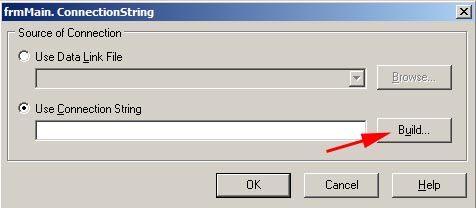
Select the Use Connection String radio button , and click on build  (Figure 10.).

Figure 10 - Connection string
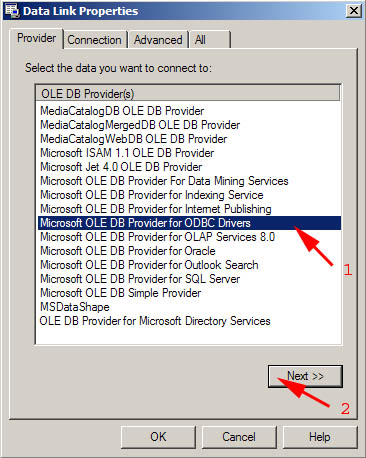
In the Data Link Properties window select the Provider tab and select the OLE DB Provider for ODBC Drivers list item from the OLE DB Provider list box(1). Click on next (2).(Figure 11.)

Figure 11 - Data link properties
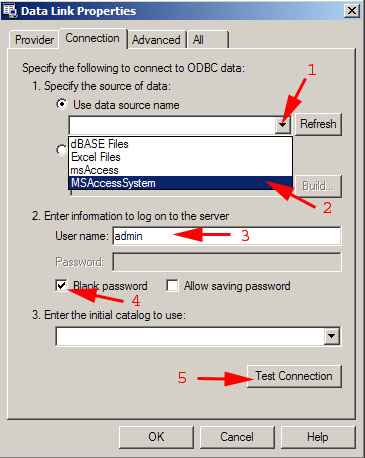
The Connection tab will appear, Click the drop down menu called "Use data source name" and select MSAccessSystem list item (1,2). Remember in the second step we create the Data Source Name: MSAccessSystem (Figure 5).   Make sure the User name is Admin (3). Click to Blank password (4) You should test the connection by clicking on Test Connection (5)  (Figure 12.)

Figure 12 - Choosing of the data source
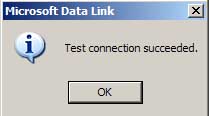
If the connection is ok you will see:  (Figure 13.)

Figure 13- Connection is successfully
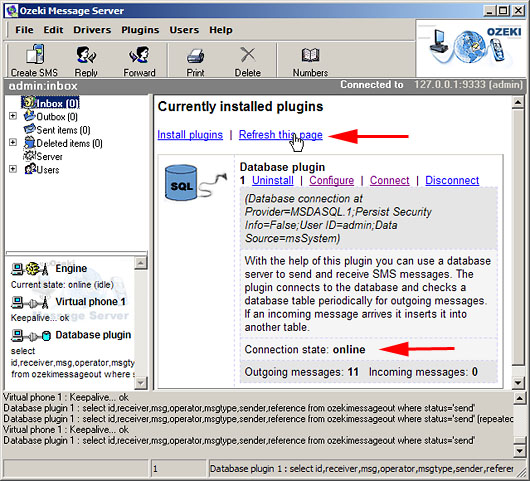
When you setup is correct the next window will appear: At the bottom of the window you can see the log if you click on the statusbar. When the Database connection is established the Database plugin 1 : select id,receiver,msg,operator text will appear in the  log.

Figure 14 - Refreshing of the currently installed plugins
Sending sms via MS Access
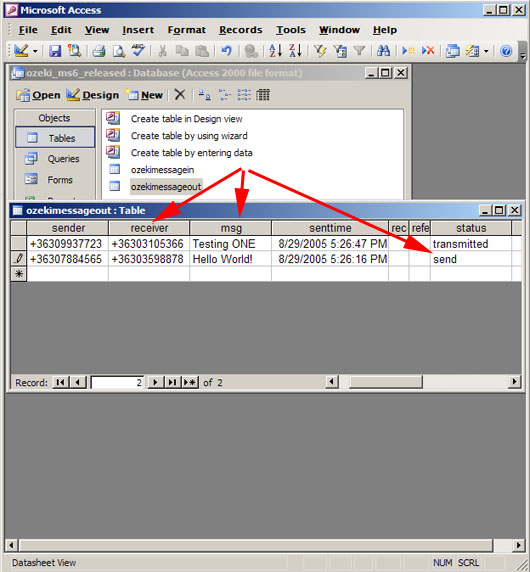
When the server  starts, go to Access and send a message, by inserting a new record into the ozekimessageout table. You must specify the receiver, enter the message in the msg field and set the status to send! (The incoming SMS messages will appear in the ozekimessagein table.)


Figure 15 - Content of the Ozekimessageout table
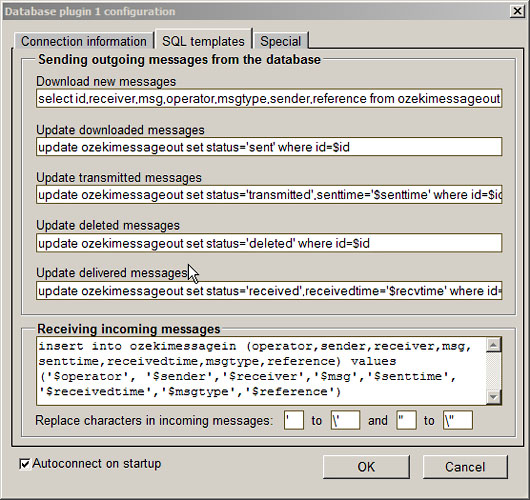
OZEKI SMS allow you to control the SQL queries used to access the data in your Access database . In these versions, you must modify these queries to make things work. Here is what you should do:

// Remove the apostrophe around the word $id. ($id should be changed to $id)

Here is what you should get after modifying the SQL statements:


SMS API for Microsoft Access developers

In this step-by-step tutorial we explain how to create an Access application, which is capable of sending and receiving SMS messages. In order to use this tutorial, you need an installed copy of OZEKI  MESSAGE SERVER  and MICROSOFT ACCESS.

Step 1 - create an Access database

First you must  have a database. You can give it any name. In this example we named it ozeki_ms6_released . In this database you need to create two tables. One of these tables is going to be used for sending SMS messages while the other is going to be used for receiving. It is important that the table used for sending messages is named ozekimessageout and the table used for receiving messages is named ozekimessagein. The columns in the tables should be created as presented on the following screenshot. (Figure 1.)  Make sure you set the field size of the msg column to 255. You can add additional columns to both tables, but you cannot change the name of the columns used for sms sending and receiving. You can download this database in Access  2003 format from here: ozeki_ms6_released.mdb.   (174kb) 
 

C# SMS

On this page C# developers can learn how to use the HTTP protocol for SMS messaging with the Ozeki Message Server.

Introduction

HTTP is the primary transport mechanism for communicating with resources over the World Wide Web. Developers often use this protocol because of its simplicity and popularity, and also because it enables them to bypass firewalls and proxies. HTTP is a request/response protocol between clients and servers. Using the Ozeki Message Server you can easily send SMS messages with a simple HTTP request. You can also receive SMS messages using the Ozeki SMS Server by implementing a very simple web server.

Configuration

If you would only like to send messages using the HTTP protocol, you do not need to configure the Ozeki Message Server. Therefore, you may as well skip this paragraph. However, if you also want to receive SMS Messages, you need to configure the OZEKI Message Server to enable it to act as an HTTP Client. For this, you need to install and configure a HTTP Client plugin. To find out how to install and configure the HTTP Client plugin, check out the following page:
HTTP Client Plugin. In the appropriate tab, you need to set a base URL where the messages will be sent.
(Example: http://127.0.0.1:9400/getresponse.php?sender=$SENDER&
                 receiver=$RECEIVER&msg=$MSG)
By configuring the HTTP Client plugin, you instruct the Ozeki Message Server to forward all incoming SMS messages to the base URL with the specified parameters. As a result, a web server listening on the base URL can easily process the messages.

Sending SMS using HTTP request/response in C#
To send SMS using the HTTP protocol, you only need to create a web request to the Ozeki Message Server. You can also receive the results of your request with a web response. In C# you can achieve this with a few lines of code:
// prepare the web page we will be asking for
String
   getUri = @"http://127.0.0.1:9333/ozeki?action=sendMessage&login=admin&
   password=abc123&recepient=" + recepient.ToString() + @"&messageData=" +
   message.ToString();

WebRequest request = (WebRequest)WebRequest.Create(getUri);
// execute the request
HttpWebResponse response = (HttpWebResponse)request.GetResponse();

//read the response
StreamReader responseReader =
             new StreamReader(response.GetResponseStream());
String resultmsg = responseReader.ReadToEnd();
responseReader.Close();
You have to create a special HTTP request to the OZEKI Message Server, which listens on the 9333 port by default. This request starts with the hostname and the name of the port the Ozeki Server listens on (127.0.0.1:9333 in our example). You need to request a virtual page called ozeki and send it the parameters, depending on the action you intend to perform. For sending SMS messages you have to use:
action=sendMessage,
login=[admins login],
password=[admins password],
recepient=[phone number of the recepient],
messageData=[the message you wish to send].                     
                  

See more at : http://www.ozeki.hu/index.phtml?ow_page_number=654page_name=sms_HTTP_Server_SMS
After creating the request and calling the GetResponse() method on the request, the SMS Message will be sent, and you can optionally read the response. The response should look like this:

      sendMessage
      
             <AcceptReport>
                <StatusCode>0</StatusCode>
                <StatusText>Message accepted for
delivery</StatusText>
                <MessageID>9294143</MessageID>
             </AcceptReport>
      

Receiving SMS using HTTP request/response in C#

To receive SMS messages using HTTP, you need to start a simple web server which is very easy in C# on Windows XP, SP2 or Server 2003. First, you need to create a new HttpListener object using the constructor of the HttpListener class . Use the Prefixes property to gain access to a specific Uniform Resource Identifier (URI), which will be the base URL.
(Note: Prefixes have to end in a forward slash “/”.) Next, start this listener and write a callback method which will handle all requests to your server. The BeginGetContext() method begins an asynchronous (non-blocking) call to receive incoming client requests. For performance reasons, start 20 of them.
public class HttpServer
{
private HttpListener listener;

public HttpServer()
{
       listener = new HttpListener();
       listener.Prefixes.Add("http://127.0.0.1:9400/");//server url
       listener.Start();
       //Start 20 servers
       for (int x = 0; x < 20; x++)
       {
       listener.BeginGetContext(new AsyncCallback(ListenerCallback),
       this.listener);
       }
}

protected void ListenerCallback(IAsyncResult result)
{
       if (this.listener == null) return;
       HttpListenerContext context =
       this.listener.EndGetContext(result);
       //We setup a new context for the next request
       this.listener.BeginGetContext(new AsyncCallback(ListenerCallback),
       this.listener);
       this.ProcessRequest(context);
       context.Response.Close();
}

//Overridable method that can be used to implement a custom handler
protected virtual void ProcessRequest(HttpListenerContext context)
{
      string Sender = context.Request.QueryString["sender"];
      string Receiver = context.Request.QueryString["receiver"];
      string Msg = context.Request.QueryString["msg"];

      byte[] buffer =
System.Text.Encoding.UTF8.GetBytes("{SMS:TEXT}{}{+36205555224}
{+36201111245}{Thank you for the answer}" +
System.Environment.NewLine);
      context.Response.OutputStream.Write(buffer, 0, buffer.Length);
}
}

Once your web server receives a HTTP request, the callback (ListenerCallback()) function will be called. This method will end the asynchronous operation with the EndGetContext() and immediately start a new context for the next request. The ProcessRequest() method can now process the incoming request. Each parameter of the request can be accessed by its name. For example, the message data will be in context.Request.QueryString["msg"].
(Note: If you want the output to be displayed on a GUI, consider you are on another thread, so watch out for illegal cross-thread calls.) After your server has received a request, you should send back a response which looks like this:
"{SMS:TEXT}{}{[sender number]}{[recipient number]}{[message text]}"       
In the request the sender’s number is optional, but the recipient’s number and the message text are mandatory.

SMS API for PHP developers

Ozeki Message Server can be used to send out SMS messages from any application. In order to send a message, the application must perform an HTTP request. The built in webserver of the Ozeki Message Server receives the request and adds the posted SMS message to the outgoing message queue. After some time the message will be sent. (The status of the outgoing message can be queried by subsequent HTTP requests) 


To send an SMS message from PHP, you may use the following code. This example will send a text message containing the text Hello World to the telephone number ++8801816544094.
PHP EXAMPLE
http://localhost/smssend.php

  "$gatewayURL  =   'http://localhost:9333/ozeki?';
  $request = 'login=admin';
  $request .= '&password=abc123';
  $request .= '&action=sendMessage';
  $request .= '&messageType=SMS:TEXT';
  $request .= '&recepient='.urlencode('+8801816544094');
  $request .= '&messageData='.urlencode("Hello World");

  $url =  $gatewayURL . $request;
  //Open the URL to send the message
   file($url);
?> "
Binary message types such as WAP PUSH messages, Operator Logos and Ringtones can also be sent using this technique. All you have to do is change the messageType field and the message content. A list of supported message types can be found on the following URL: http://www.ozeki.hu/index.php?owpn=488.

PHP EXAMPLE 2
http://localhost/index.php
The code below will display an HTML form including fields for the sender, the recepient, the message, as well as a Send button. It contains a PHP code which will process the contents of the form and send an SMS mesage to the Ozeki Message Server if you click on the Send button. During the processing, make sure you use urlencoding, otherwise the PHP will send incorrect data to the Message Server.

if ($submit=="Send")
{
$url='http://localhost:9333/ozeki?';
$url.="action=sendMessage";
$url.="&login=admin";
$url.="&password=abc123";
$url.="&recepient=".urlencode($recepient);
$url.="&messageData=".urlencode($message);
$url.="&sender=".urlencode($sender);
file($url);
}
?>


Sender

Recepient

Message


Questions: How do I tell a PHP application to use an specific smpp connection.
Answer: You should specify the "Operator name" on the SMPP configuration form. Then you can use this operator name in the PHP application. E.g. if you put "Vodafone1" as operator name in the SMPP configuration form, in the PHP plugin you should write:

echo "{GSMSMS}{Vodafone1}{}{+36201234567}{Hello world}\n";


SMS API for ASP developers

Ozeki Message Server can be used to send out SMS messages from an ASP application. In order to send a message, the application must perform an HTTP request. The built in webserver of the Ozeki Message Server receives the request and adds the posted SMS message to the outgoing message queue. After some time the message will be sent. (The status of the outgoing message can be queried by subsequent HTTP requests)

To send an SMS message from ASP, you may use the following code. This example will  send a text message containing the text Hello World to the telephone number +8801816544094.
ASP  EXAMPLE

http://localhost/smssend.asp

<%
    Dim strMsg
    Dim strReceiver
    Dim strUrl
    ' Retrieve the posted items from the HTTP-SMS gateway
    strUrl = "http://localhost:9333/ozeki?"
    strRequest = "login=admin";
    strRequest = strRequest+"&password=abc123";
    strRequest = strRequest+"&action=sendMessage";
    strRequest = strRequest+"&messageType=SMS:TEXT";
    strRequest = strRequest+"&recepient="+Server.URLEncode("+8801816544094");
    strRequest = strRequest+"&messageData="+Server.URLEncode("Hello World");
   strUrl = strUrl+strRequest;
    'Create InternetExplorer
    Dim WebBrowser: Set WebBrowser = CreateObject("InternetExplorer.Application")

    WebBrowser.Navigate strUrl
    Do While WebBrowser.busy
    Loop
    WebBrowser.Quit
    'Display message info to the user
    Response.Write("The message has been sent . " + chr(13))
%> "


Binary message types such as WAP PUSH messages, Operator Logos and Ringtones can also be sent using this technique. All you have to do is change the messageType field and the messageData field to the appropriate message  content.


SMS API for Database developers (SQL)

If you use the OZEKI Message Server  you can send and receive SMS messages using a database server with the help of SQL queries.

In order to use this option, you need to have a database server (such as Oracle, Access, MySql, MS SQL, Postgres, Sybes, etc) installed, and there should be two database tables created: ozekimessageout and ozekimessagein. One of these will be used for sending and the other for receiving SMS messages.

Ozeki Message Server will connect to the database through a standard ADO or ODBC connection (Figure 1). Using this connection it will periodically query the database table ozekimessageout for outgoing messages using a SELECT statement and will INSERT incoming messages into the database table used for incoming messages (ozekimessagein). 


If you want to send a message you can issue the following SQL statement:

"sql> INSERT INTO ozekimessageout (receiver,msg,id,status)
     //VALUES ('+36203105366','test message',23,'send');
"

It is important to mention that the SMS Server identifies the messages by their ids. You must make sure that you specify a unique id for each message or you should use auto_increment columns. This ID is used by Ozeki Message Server to update the status attribute of the message. For example if the message is accepted by the GSM service provider for delivery it's status field is updated to 'transmitted' to notify the database programmer what happened to the message.
The incoming messages are placed into the ozekimessagein table. You can see the create definition for this table at the url above as well. To view the incoming messages you can use the select statement.

"sql> SELECT sender,msg,receivedtime FROM ozekimessagein;" 

+--------------+--------------+-------------------+
| sender       | msg          | receivedtime      |
+--------------+--------------+-------------------+
| +36203105366 | test message | 01/11/03 08:43:32 |
+--------------+--------------+-------------------+
1 row in set (0.00 sec)

It is interesting that often, without any external application, you can create powerful SMS enabled solutions. You can do this with the help of database triggers or stored procedures. Here is an example:

Autoreply function with a Microsoft SQL Server:

CREATE TRIGGER autoreply ON ozekimessagein
FOR INSERT AS
DECLARE @tel VARCHAR(30)
SELECT TOP 1 @tel=sender FROM ozekimessagein ORDER BY ID DESC
INSERT INTO ozekimessageout (receiver,msg,status) VALUES (@tel,'Thank you for the message','send')
GO


OZEKI Excel SMS Client

The Excel SMS client enables you to send SMS messages from Microsoft Excel. To achieve this goal, all you have to do is open two excel spread sheets: Messages.xls and Ozeki.xls. In the Messages.xls spread sheet, you need to fill the telephone numbers into the first column and the messages into the second column. In the Ozeki.xls excel sheet you will find a macro that can be started by clicking on the Send all button. This macro will connect to Ozeki Message Server 6 over the office LAN or over the internet and will send the SMS messages you have edited on the Messages.xls sheet. The parameters for this network connection can be edited on the Ozeki.xls spread sheet


OZEKI MESSAGE SERVER 6 - SMS GATEWAY

Ozeki Message Server 6 - SMS gateway is a powerful, flexible SMS Gateway application, that enables you and your applications to send/receive SMS messages to mobile devices with your computer. It has an easy to use user interface, and an excellent internal architecture. The application can use a GSM mobile phone attached to the PC with a phone-to-PC data cable or IP SMS technology to transmit and receive the messages. Ozeki  Message Server works on Microsoft Windows XP,2000,2003 operating systems.
 
Office users
Office users can use Microsoft Outlook, Microsoft Outlook Express  and Microsoft Excel to send hundreds of messages to their clients. The messages and the phone numbers are stored in Excel files and an Excel Macro initiates the sending process. (The excel macro is included in the software package.)

Software developers
Software developers can integrate SMS messaging functionality into their  applications very easily. For example if an SMS  message needs to be sent, it can be  inserted into a  database table used for outgoing messages. The Ozeki Message Server monitors this table and delivers the message. The Message Server puts all received SMS in another database table used for incoming messages. Of course many other APIs are available in the software to support software development.

IP SMS Gateway

Ozeki Message Server 6 is an SMS gateway that can be used to set up a high capacity messaging platform in your office. You can use it as a bidirectional E-mail to SMS gateway, as an SQL to SMS gateway or as an HTTP SMS gateway. In fact you can have all of this functionality at the same time. You can also use it from many programming languages, such as C++, Java, PHP, ASP, Delphi and MS Access, to create automated SMS services. 

Ozeki Message Server 6 is an installable software that runs as a system service on your Windows XP,2000,2003 computer. In terms of communication it can use the Internet to attach to SMS service providers using SMPP, CIMD2, UCP/EMI, HTTP or proprietary protocols; or you can attach one or more GSM modems to your computer to do the sending and receiving.

If you decide to set up your own SMS gateway, you will benefit from many advantages of being the owner. The bigest advantage is that you don't have to modify your application if your SMS service provider goes bankrupt and you will have a fault tolerant system.

Advantages to having your own SMS gateway

Operating your own SMS gateway inhouse has many advantages:
- You can keep your system provider independent.
- You can access more then one SMS service providers simultaneously to increase fault tolerance and to do least cost routing.
- You can use a GSM modem as a backup line in case IP connectivity fails.
- You can control costs and adjust the capacity as demand changes.


IP SMS technology

If you plan to send or receive a larger number of SMS messages, it is worth to consider using the Internet (Figure 1). Over the Internet (or over a private IP network, such as a leased line), it is possible to connect directly to the GSM operator's SMS Center (SMSC). The SMSC is responsible for receiving, storing and delivering the SMS messages in a GSM telephone network. The benefits of direct connection to this service are great. 


A large number of messages can be sent or received in a short time. The sender phone number can be freely modified. The availability of the service can be monitored. If you work with great volumes of messages, this solution is cheaper, faster and more reliable than the alternative solution of using a GSM handy connected to a computer.
Ozeki Message Server enables you to connect directly to your service provider's SMSC through the Internet or a leased line using TCP/IP. In order to use this option, first you need to sign a contract with your GSM service provider, to get direct access to it's SMSC. If you have a contract you will receive their IP address, a port number and user name and password to access their service. Often they will ask to set up a VPN connection to their service. After a connection is available to the SMSC, an SMS protocol is required to be able to send and receive SMS messages. The most common protocols are UCP, SMPP and CIMD2. (Of course all of these are supported by Ozeki Message Server. In fact you can use more then one of these protocols simultaneously.) You can read more about these protocols on the following pages.

SMS messaging with a mobile phone attached to the PC


If you plan to send/receive less then 15 000 SMS messages per day a good option is to attach a GSM phone or GSM modem to your PC. The GSM phone must be equipped with a SIM card that has good tariff for SMS messages. The GSM phone can be attached with a data cable, with and InfraRed port (IR) or with a BlueTooth (BT) connection.  With this setup you can use a computer program such as Ozeki Message Server to send/receive SMS messages. The computer program in this case uses the attached device to communicate with the GSM network.

If a message is sent by the application running on the computer it is first sent to the attached GSM phone, and as a second step the GSM phone transmits the messages to the SMSC of the GSM service provider through a wireless link (Figure 1.).  When a message is received, the GSM phone stores the message in its memory or on the SIM card and sends a notification to the PC. When the program running on the PC receives this notification, it reads the appropriate memory cell and deletes the message from the phone to make room for the next incoming message


Sending an SMS message using a cell phone takes about 5-6 seconds. Receiving takes about the same time. Good software, such as Ozeki Message Server allows you to attach more then one devices to your PC and to use them simultaneously to increase capacity.

The best option to connect a phone to the PC is to use a standard RS232 serial cable. USB cables, InfraRed and BlueTooth connections are not that reliable. You can read more about the connection methods on the following pages

SMS ONLINE

"It's like using hotmail but for sms. I can now easily communicate with my entire customer base within a few clicks, and without any major set up costs.brilliant! "
What is SMS Online?
SMS Online is a web based interface that allows you to send SMS Messages to individuals or pre defined recipient groups through any web browser in the world. It's as easy to use and as versatile as any popular online email service.

How much does it cost?

SMS online is free. You only pay for the messages you use

Mobile Application Development with SMS and the SIM ToolkitMobile Application Development with SMS and the SIM Toolkit 

Mobile Application Development with SMS and the SIM Toolkit 

How do I get started?

Simply sign up using the above registration link and set up your SMS Online in just a few minutes. SMS Online will provide you with all the features you need to send and receive SMS Text messages through a web browser, as well as a host of powerful features to manage your messages, contacts, users and message templates. You can even create campaigns, apply message routing rules and define automated responses.